
Basics of Vocal Synthesizers

How to use a Vocal Synthesizer
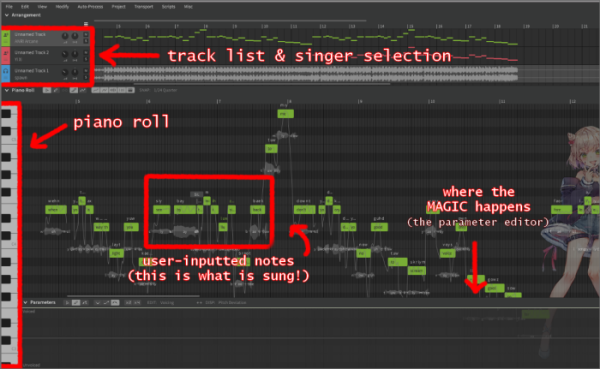
An image displaying the user interface of Synthesizer V Studio. A vocal synth has four primary components, highlighted in red here: the arrangement, the piano roll, the notes, and the parameter editor.
(For all intents and purposes, the vocal synth being demonstrated here is Synthesizer V Studio Pro v1.11.08b)
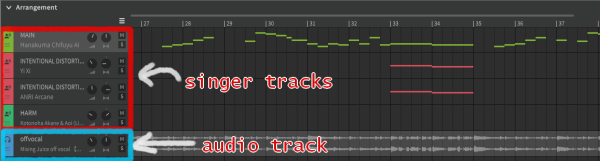

An image displaying the track list of Synthesizer V Studio. The arrangement shows the current audio and singer tracks, as well as offering the option to create new tracks by right-clicking on the left side of the track display. Each type of track has its own symbol on the far left to differentiate them, and the user can color-code them if they wish.
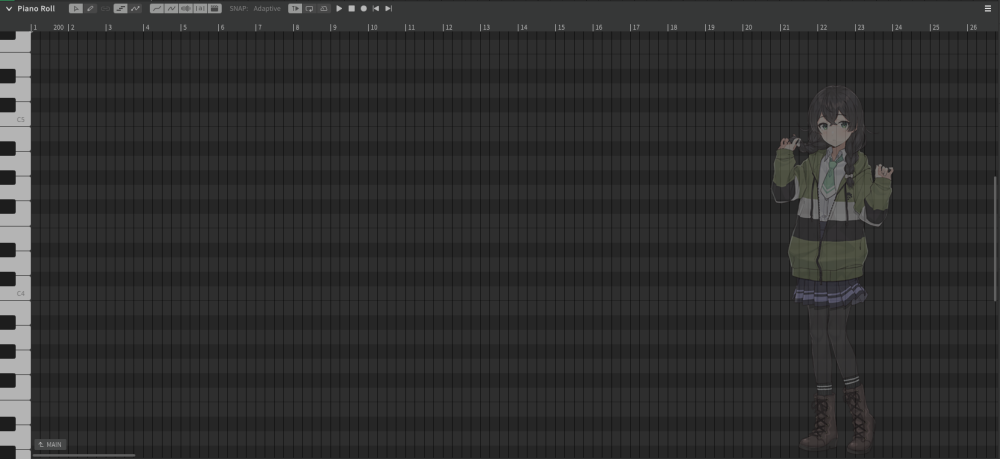

An image of the piano roll in Synthesizer V Studio. An image of the icons displayed in the top toolbar of the piano roll in Synthesizer V Studio. The piano roll highlighted in the first image a little misleading. It actually refers to the entire interface where the user can input notes. Using the piano on the left as a reference, the user can draw and position notes, which will correspond to the pitch that would be produced by the piano. Instead of a piano tone, however, it will be sung back to you by whichever singer you choose!
On the very top of the piano roll, you will find icons that will help you with your user-inputted notes later on. From left to right, you have your selector tool and your drawing tool, your editor toggle, a few display options, note snapping, and your playback options.


(sorry I forgot to edit the video in time!)


When inputting notes into the program, the user must ensure they're using the drawing tool (selected from the top of the piano roll) to create them. The selector tool can be used to position and change the length of a note (or group of notes). By right-clicking on a note, you can split it into multiple pieces of the same note. You can type the plus (+) symbol into a note to split the phonemes (syllables) of the word previous to it, and the minus (-) symbol to elongate the phonemes.
The video to your left will demonstrate how this looks in action as you use the program!
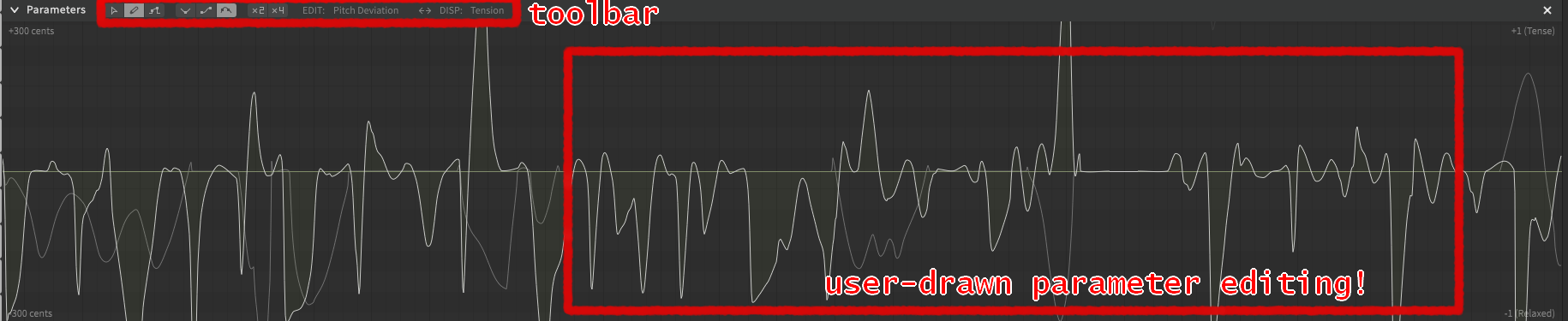

An image of the parameter editor in Synthesizer V. The magic of vocal synthesizers is found here, in the parameter editor! This is what you make changes to in order to produce different vocal performances. Much like the piano roll, the parameter editor has an icon toolbar at the top to switch between drawing modes and parameters.
Parameter editing is covered more in depth on the "What is Tuning?" page. For now, the image on your right shows you what the editor interface looks like.



Big Names, Big Voices

Name Program Description
Hatsune Miku | 初音ミク An image of Hatsune Miku's VOCALOID2 illustration, done by KEI. VOCALOID | Piapro Studio The defining face of the vocal synthesizer world. Hatsune Miku is a cutesy feminine vocal who's able to sing in Japanese, English, and Mandarin Chinese. She's also capable of singing in different styles with the use of append voicebanks (voicebanks that came before vocal modes existed). Alongside being one of the first commercial voices to have a "mascot character" attributed to it, her rise to stardom came from how accessible her voice was to synth beginners and fans quickly began to create works using her voice and image. Her official description describes her as a 16-year-old girl from the future "where music is lost." This is reflected in her name, which means "the first sound of the future."
Kagamine Rin & Len | 鏡音リン ・ レン An image of Kagamine Rin and Len's VOCALOID2 illustration, done by KEI. VOCALOID | Piapro Studio Kagamine Rin and Len are marketed as a "two-in-one voicebank," two voices for the price of one. They cansing in both Japanese and English. Rin is the feminine vocal, while Len serves as her counterpart masculine vocal. Their matching design and shared surname implies that they should be viewed as "twin characters," something reflected in their surname, which uses the Japanese kanji for "mirror" (鏡). However, their relationship in songs and official media is up to the user/fan's interpretation. They have a more nasally tone compared to Miku, but this is a part of their charm. They have a bright and powerful delivery, and have a "younger" sound as well.
Kasane Teto | 重音テト An image of Kasane Teto's UTAU illustration, done by Sen. UTAU | Synthesizer V Kasane Teto was originally created in 2008 as an April Fools' troll character to make people believe there was a new VOCALOID about to be released. Her first voicebanks were created and used on UTAU, the free VOCALOID-alternative program. One of her defining vocal qualities lies in her raspy, growly voice, which remains a part of her charm to this day. She even has some append banks that amplify her growl and volume. In 2023, Teto's development team, TWINDRILL, collaborated with Dreamtonics (the company behind Synthesizer V) to create a more realistic voicebank for Kasane Teto on Synthesizer V. Thanks to Synthesizer V's cross-language synthesis, she can sing in English, Japanese, Korean, Mandarin Chinese, Cantonese, and Spanish.
GUMI Megpoid An image of GUMI's VOCALOID4 illustration, done by Masami Yuuki. VOCALOID | Synthesizer V GUMI's signature lies in her expansive library of voicebanks. Upon her update to VOCALOID3, she got five new voicebanks, including an English language voicebank (before cross-language synthesis allowed for singers to sing in any available language). Her English voice was regarded as one of the best English voices at the time, and became the default English voicebank used by fans.
GUMI was one of the first vocals to have a plethora of appended voicebanks, which gave her a leg up on the competition. This allowed GUMI to be very flexible and apply herself to many different genres. These banks were called Sweet, Whisper, Adult, Native, Power, and Solid. Her Sweet voicebank aimed to lean cuter and child-like, Adult leaned the opposite way, Power gave her voice more punch, Solid gave her a brighter and clearer tone, and Native served as her default voicebank.
KAFU | 可不 An image of KAFU's illustration, done by PALOW. CeVIO KAFU is the only CeVIO voice featured on this list, but has been incredibly popular since her release only four years ago in 2021. She has an incredibly unique voice in comparison to the currently-existing commercial voicebanks out there. Her twang and nasally tone, alongside her bright and cute voice, makes up her charm. Her popularity was also raised because of her voice provider, the online singer KAF, being a part of a popular Japanese internet singer group called KAMITSUBAKI. KAF famously duets songs using KAFU on her own YouTube channel. It really shows how similar KAFU is to her voice provider!


Today's Popular Users

Within the community of vocal synth users, there are real musicians who have become real afficianados and staked a name for themselves in this little world. We call these musicians Vocal Synth Producers. They've generated their own unique styles of expressing the virtual singers they use and the variety alone demonstrates the endless possibilities featured on vocal synthesis software. There are countless, countless names on the internet, who pick singers of all different levels of popularity. I've compiled some of today's most recognizable and active faces in the community.

Name Debut Frequently-used Singers Information
DECO*27
(デコニーナ)
October 8th, 2008 (previously) GUMI
Hatsune Miku
DECO is currently the single most recognizable face in the vocal synth community. His songs amass millions of views and listens across platforms, and continue to trend long after their initial popularity peak. His music falls into the pop-rock genre. He writes most often about the complexities of love and interpersonal relationships. His rise to fame has garnered attention from Hatsune Miku's parent company, Crypton Future Media, as he is often asked to compose songs for new projects involving Miku. Many of his songs are featured in rhythm games, concerts, and collaboration events. In 2018, DECO estrablished a creative studio called OTOIRO, which handles the production of both the music videos and music compositions of songs posted on DECO's channel. He operates as both a CEO and a music producer for OTOIRO.
Kikuo
(きくお)
September 14th, 2010 Hatsune Miku Kikuo is a legendary veteran of the vocal synth sphere, capturing audiences around the globe with his bizarre compositions and unsettling subject matter present in his songs. He gained notoriety for the dark themes tied to his lyricism. It's because of these themes that many people express concern over his popularity, claiming that overseas listeners don't understand what they're singing along to when they listen to Kikuo's music. This couldn't be further from the truth. From a post-international-tour interview with Kikuo himself, he stated, "Every now and again, people in Japan will say things like: "Do they really understand Kikuo-san's lyrics, while still having that much fun and being that excited?" or something like that. [...] I get the impression that they understand all of it just fine, and enjoy themselves anyway."
Pinocchio-P
(ピノキオピー)
February 23rd, 2009 Hatsune Miku Pinocchio-P is one of few modern, popular producers who are responsible for just about everything in their songs. He singlehandedly composes, tunes, mixes, and illustrates for nearly all of his works. When he's not working on music, he's typically DJ-ing at his own solo concerts. His music is well-known for its philosophical lyrics packed into colorful and silly music videos. He also provides backing harmonies himself, as opposed to using other virtual singers, which has become a signature of its own. He has released 13 separate albums alongside a "greatest hits" and live performance album, and has been featured in countless remixes and collaborations.
KIRA January 1st, 2016 GUMI
Hatsune Miku
KIRA is a German music producer who composes mainly English-language songs using GUMI. Lately, he's been dabbling in mixing both English and Japanese into his songs, as well as collaborating with a fellow high-profile figure in the community, Giga. He leans extensively into EDM and his songs have a "girl power" attitude about them. KIRA was one of the first English-language Vocaloid Producers to gain substantial fame, alongside artists such as VocaCircus (best known for "Copycat ft. GUMI") and Crusher-P (best known for "ECHO ft. GUMI"). He was the official theme song composer for HATSUNE MIKU EXPO Online 2021 (an annual live concert event) with the track "Highlight".